專業螢幕的調整方式

<P><FONT face=新細明體><FONT size=3><FONT color=#000000>通常比較專業的監看螢幕都具有以下的功能</FONT></FONT></FONT> </P>
<P><FONT color=#000000><FONT face=Wingdings><FONT size=3>l </FONT></FONT><FONT face="Times New Roman"><FONT size=3>Chrom</FONT></FONT><FONT size=3><FONT face=新細明體>a</FONT><FONT face=新細明體>:</FONT><FONT face="Times New Roman"> </FONT></FONT><FONT face=新細明體><FONT size=3>色彩濃淡</FONT></FONT></FONT> </P>
<P><FONT color=#000000><FONT face=Wingdings><FONT size=3>l </FONT></FONT><FONT face="Times New Roman"><FONT size=3>Phase/Hu</FONT></FONT><FONT face=新細明體><FONT size=3>e</FONT></FONT><FONT face=新細明體><FONT size=3>:彩色相位</FONT></FONT></FONT></P>
<P><FONT color=#000000><FONT face=Wingdings><FONT size=3>l </FONT></FONT><FONT face="Times New Roman"><FONT size=3>Brightnes</FONT></FONT><FONT face=新細明體><FONT size=3>s</FONT></FONT><FONT face=新細明體><FONT size=3>:黑階的高度</FONT></FONT></FONT> </P>
<P><FONT color=#000000><FONT face=Wingdings><FONT size=3>l </FONT></FONT><FONT face=新細明體><FONT size=3>Contrast</FONT></FONT><FONT face=新細明體><FONT size=3>:對比度</FONT></FONT></FONT> </P>
<P>&nbsp;</P>
<P><FONT face="Times New Roman"><FONT size=3><FONT color=#000000></FONT></FONT></FONT><FONT size=3><FONT color=#000000><FONT face=新細明體>但是要如何去應</FONT><FONT face=新細明體>用,去調整,才會得到正確的顏色呢。</FONT></FONT></FONT> <FONT face=新細明體><FONT size=3><FONT color=#000000>這裏教一下如何去調整。</FONT></FONT></FONT> </P>
<P><FONT face=新細明體><FONT size=3><FONT color=#000000>要調整之前,先要給機器來個<FONT color=red>暖機</FONT>,暖個十幾分鐘就可以了。</FONT></FONT></FONT> </P>
<P><FONT face=新細明體><FONT size=3><FONT color=#000000>再來就是送一個標準訊號。</FONT></FONT></FONT> <FONT face=新細明體><FONT size=3><FONT color=#000000>標準訊號可以是來自攝影機、錄影機的彩條。</FONT></FONT></FONT> <FONT face=新細明體><FONT size=3><FONT color=#000000>什麼是彩條?就是Color Bar啦!</FONT></FONT></FONT> </P>
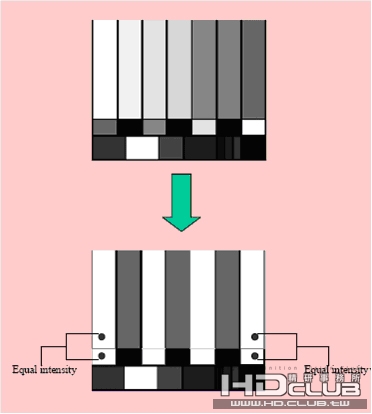
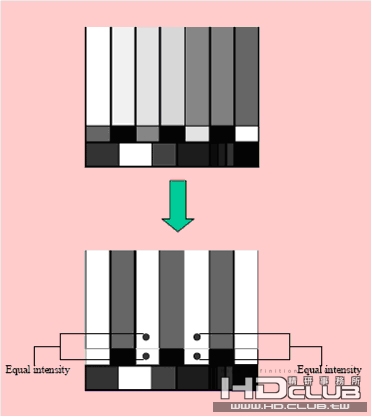
<P><FONT face="Times New Roman"><FONT size=3><FONT color=#000000></FONT></FONT></FONT><FONT size=3><FONT color=#000000><FONT face=新細明體>首先將</FONT><FONT face="Times New Roman">ColorBar</FONT><FONT face=新細明體>的畫面,利用</FONT><FONT face="Times New Roman"><STRONG>Blue only</STRONG></FONT><FONT face=新細明體>功能變成單色的影像。</FONT></FONT></FONT> </P>
<P><FONT size=3><FONT color=#000000><FONT face=新細明體>再來利用</FONT><FONT face="Times New Roman">Chroma</FONT><FONT face=新細明體>鈕來調整左、右兩個最外測的直線條</FONT><FONT face="Times New Roman">leve</FONT><FONT face=新細明體>l</FONT><FONT face=新細明體>,目的是要作到上、下兩個色塊得到一致的影像。</FONT></FONT></FONT> </P>
<P><FONT face=新細明體><FONT size=3><FONT color=#000000>如下圖所示:</FONT></FONT></FONT> </P>
<P><FONT face=新細明體><FONT size=3><FONT color=#000000>
Chroma.jpg
2009-6-9 11:20
</FONT></FONT></FONT> </P>
<P>&nbsp;</P>
<P><FONT face=新細明體><FONT size=3><FONT color=#000000></FONT></FONT></FONT><FONT face=新細明體><FONT color=#000000><FONT size=3><FONT face=新細明體>再來利用</FONT><FONT face="Times New Roman">Phase/Hue</FONT><FONT face=新細明體>旋鈕調整中間兩個白色的直線條</FONT><FONT face="Times New Roman">leve</FONT><FONT face=新細明體>l</FONT></FONT></FONT><FONT face=新細明體><FONT size=3><FONT color=#000000>,目的仍是要作到上、下兩個色塊得到一致的影像。</FONT><B><FONT color=red>(</FONT><FONT color=red>注意:若是使用SDI訊號,此功能無效)</FONT></B></FONT></FONT> </FONT></P>
<P><FONT face=新細明體><FONT face=新細明體><FONT size=3><FONT color=#000000>如下圖所示:</FONT></FONT></FONT></FONT></P>
<P><FONT face=新細明體>&nbsp;
phase.jpg
2009-6-9 11:20
</FONT></P>
<P><FONT face=新細明體><FONT size=3><FONT color=#000000><FONT face=新細明體>完成後,應該是看到</FONT><FONT face="Times New Roman">4</FONT><FONT face=新細明體>個淺色條紋,</FONT><FONT face="Times New Roman">3</FONT><FONT face=新細明體>個深色條紋。</FONT></FONT></FONT> </FONT></P>
<P><FONT face=新細明體><FONT size=3><FONT color=#000000><FONT face=新細明體>解除</FONT><FONT face="Times New Roman">Blue Only</FONT><FONT face=新細明體>功能,回到彩色模式。</FONT></FONT></FONT> </FONT></P>
<P><FONT face=新細明體></FONT>&nbsp;</P>
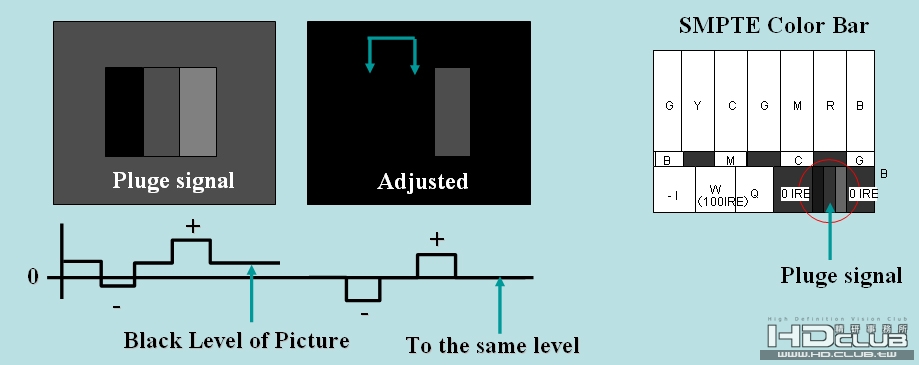
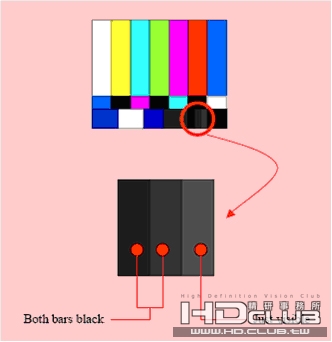
<P><FONT face=新細明體><FONT face="Times New Roman"><FONT size=3><FONT color=#000000></FONT></FONT></FONT><FONT face="Times New Roman"><FONT size=3><FONT color=#000000></FONT></FONT></FONT><FONT face=新細明體><FONT size=3><FONT color=#000000>再來是黑階的調整</FONT></FONT></FONT> <FONT size=3><FONT color=#000000><FONT face=新細明體>依照標準</FONT><FONT face="Times New Roman">SMPTE</FONT><FONT face=新細明體>的</FONT><FONT face="Times New Roman">ColorBar</FONT></FONT></FONT> <FONT face=新細明體><FONT size=3><FONT color=#000000>在右下角有個三段的黑階。</FONT></FONT></FONT> </FONT></P>
<P><FONT face=新細明體><FONT size=3><FONT color=#000000><FONT face=新細明體>這三個黑階的位準分別依左而右為</FONT><FONT face="Times New Roman">-</FONT><FONT face=新細明體>4 IRE</FONT><FONT face=新細明體>、0 IRE及+ 4 IRE。</FONT></FONT></FONT> </FONT></P>
<P><FONT face=新細明體><FONT face=新細明體><FONT size=3><FONT color=#000000>基本上,黑色最黑就是0 IRE了。</FONT></FONT></FONT> <FONT face=新細明體><FONT size=3><FONT color=#000000>所以-4 IRE理應和0 IRE一樣黑,不能分辦出-4 IRE的黑階。</FONT></FONT></FONT> <FONT face=新細明體><FONT size=3><FONT color=#000000>如果你可以看到3條黑階,那就代表黑階的亮度太高。</FONT></FONT></FONT> </FONT></P>
<P><FONT face=新細明體><FONT face=新細明體><FONT size=3><FONT color=#000000>正確的作法要調整Brightness旋鈕,調到只能分辦2個黑階就可以了。</FONT></FONT></FONT> </FONT>
黑階-1.jpg
2009-6-9 11:20
黑階.jpg
2009-6-9 11:20
</P>
<P>&nbsp;</P>
<P><FONT size=3><FONT color=#000000><FONT face=新細明體>最後就是</FONT><FONT face="Times New Roman">Contrast(</FONT><FONT face=新細明體>對比</FONT><FONT face="Times New Roman">)</FONT><FONT face=新細明體>了</FONT></FONT></FONT></P>
<P><FONT size=3><FONT color=#000000><FONT face="Times New Roman">Contrast</FONT><FONT face=新細明體>主要就是調整白色最亮的</FONT><FONT face="Times New Roman">level</FONT><FONT face=新細明體>了。</FONT></FONT></FONT> <FONT face=新細明體><FONT size=3><FONT color=#000000>通常是在戶外使用時,你可以把Contrast調得高一點。因為週遭的光線較強,調高一些比較容易分辨出螢幕內的景物。</FONT></FONT></FONT></P>
<P><FONT face=新細明體><FONT size=3><FONT color=#000000>如果是在室內時操作時,你可以把Contrast數值調低一點。免得眼睛容易疲勞。</FONT></FONT></FONT></P>
<P><FONT face=新細明體 size=3></FONT>&nbsp;</P>
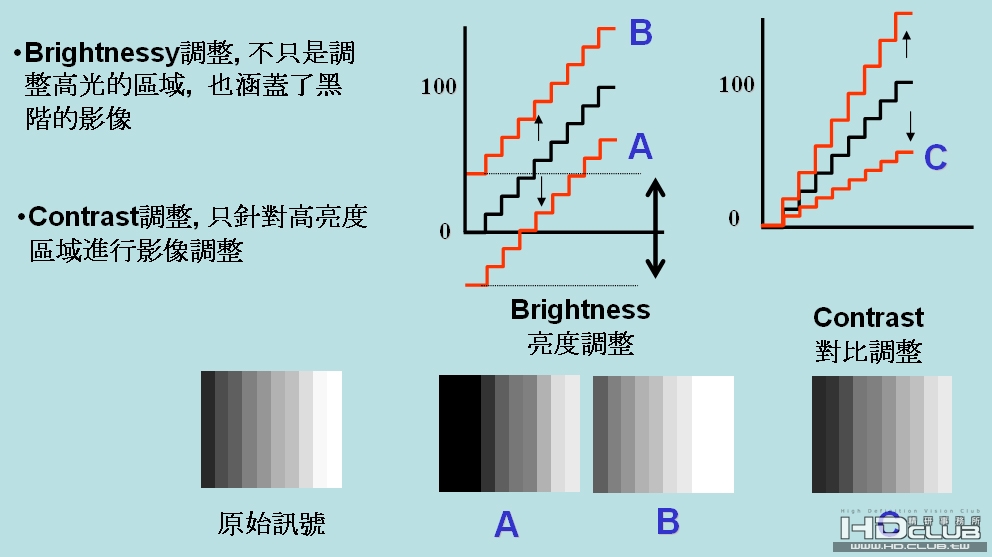
<P><FONT face=新細明體><FONT size=3><FONT color=#000000><FONT face=新細明體>關於</FONT><FONT face="Times New Roman">Brightness</FONT><FONT face=新細明體>和</FONT><FONT face="Times New Roman">Contrast</FONT><FONT face=新細明體>的差異</FONT> <FONT face=新細明體>它們看起來很像,但又不知道哪裏有差。</FONT> </FONT></FONT></FONT></P>
<P><FONT face=新細明體><FONT size=3><FONT color=#000000><FONT face=新細明體>調整時,轉動任一個旋鈕畫面都會變亮,也都會變暗。</FONT> </FONT></FONT></FONT></P>
<P><FONT face=新細明體><FONT size=3><FONT color=#000000><FONT face=新細明體>透過以下的圖示,相信就比較就容易懂了。</FONT>
對比.jpg
2009-6-9 11:20
</FONT></FONT></FONT></P>
<P><FONT face=新細明體><FONT size=3><FONT color=#000000><FONT face="Times New Roman"></FONT><FONT face=新細明體>所以,正確的調整步驟應是先調</FONT><FONT face="Times New Roman">Brightnes</FONT><FONT face=新細明體>s</FONT><FONT face=新細明體>,之後再調整Contrast。</FONT> </FONT></FONT></FONT></P>
<P><FONT face=新細明體><FONT size=3><FONT color=#000000><FONT face=新細明體>把黑階修正好了才去調整高亮的部份。</FONT> <B><FONT color=red><FONT face=新細明體>注意:亮度愈高、解析度就會愈低</FONT></FONT></B> </FONT></FONT></FONT><FONT face=新細明體><FONT size=3><FONT color=#000000></FONT></FONT></FONT></P>

[ 本帖最後由 Shammy42 於 2010-1-27 22:33 編輯 ]
7

評分次數

  • joewang2003

  • jjlin

  • dyeverywhere

  • namo

  • PHD270

  • BlueMark

  • alex

真的是溫故知新啊,謝謝蝦米老師!
台灣在腳下轉動了好幾圈, 有感於寶島的許多珍貴資產逐漸消失,卻來不及留下任何紀錄...BlueMark Blog 湛藍馬克部落
這麼久沒摸,多虧蝦米老師恢復記憶
<P>其實這只是一些最基本的調整步驟而已. </P>
<P>但是我發覺還是有很多新手不知道如何使用. </P>
<P>通常大家比較不知道的是亮度及對比的差別. 希望透過比較簡單的圖解, 來教導會員們去使用自已手上的監看螢幕. </P>
<P>不要等到老前輩叫你去調螢幕, 自已不懂還不好意思問. 然後亂調一通. </P>
<P>最後說..是攝影機有問題: 因為看到對白後顏色不對. </P>
<P>這幾個簡單的調整步驟, 最適合攝影拍攝時所用的監看螢幕. </P>
<P>如果是要調整後製作校色用的監看螢幕. 那就要再增加黑/白平衡的動作. 以及色域的設定. </P>
<P>這屬於比較進階的調整. 也比較複雜. 需要更多的工具及週邊設備. </P>
<P>因此, 如果下次有機會遇到的話. 再記錄下來舖上網給大家參考.</P>

[ 本帖最後由 Shammy42 於 2010-4-1 12:56 編輯 ]
好棒的文章,學習學習,增長知識。
听楼主一番话,胜读一本书!@

HD呢?

再請教HD的COLOR BAR螢幕的調整方式,感謝
還有為什麼有75%跟100%兩種COLOR BAR呢

[ 本帖最後由 hokaido 於 2009-7-7 09:05 編輯 ]
感謝夏米大 非常受用  
這領域的專家 Tektronix 的技術文章中就有提到為什麼會有 100% 與 75% 的 Color Bar

Some adjustment of amplitudes is needed when the luminance and chrominance signals are combined. Figure 7-4 shows the result if the signals for full-amplitude bars are combined without these adjustments. Note the peak level of the chrominance is very much above 100% white luminance. This signal will be seriously distorted in passing through a video system, especially a system originally designed for handling monochrome signals. In Figure 7-5, the level of B-Y is reduced by a factor of 2.03 and R-Y level is reduced by a factor of 1.14. These specific factors are chosen to limit the peak of the waveform to 100% white level with a 75% amplitude bars signal (Figure 7-6). This 75% bars signal has become the most common for testing NTSC systems.


Figure 7-4. Full amplitude bars without gain adjustments.


Figure 7-5. Full amplitude bars.


Figure 7-6. Corrected 75% bars signal (with 100% white).


來源:http://www.tek.com/Measurement/A ... Msmt/colorbars.html

感謝感謝

圖文並茂~這樣來教新手最簡單了
恩恩~介紹的超詳盡的!
有圖果然超容易懂
之前看到在別的網站都講得很含糊..
謝謝囉~
雖然已經離開這行有些時間了
不過這個教學還是受用良多
以前都看不懂
只好麻煩師兄
原來還是有簡單明瞭調校教學
這下子又懂一些了
都得一步一步循序渐进地去学习啊。
很实用的监视器调整说明,简单又易学
謝謝,收藏了!!!
收藏起來  好好學習學習  謝謝分享!!